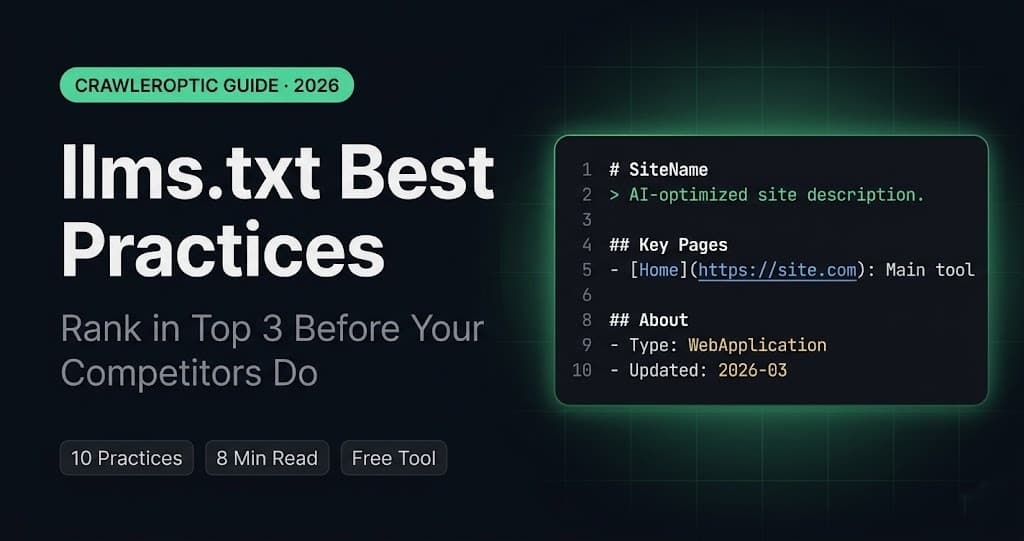
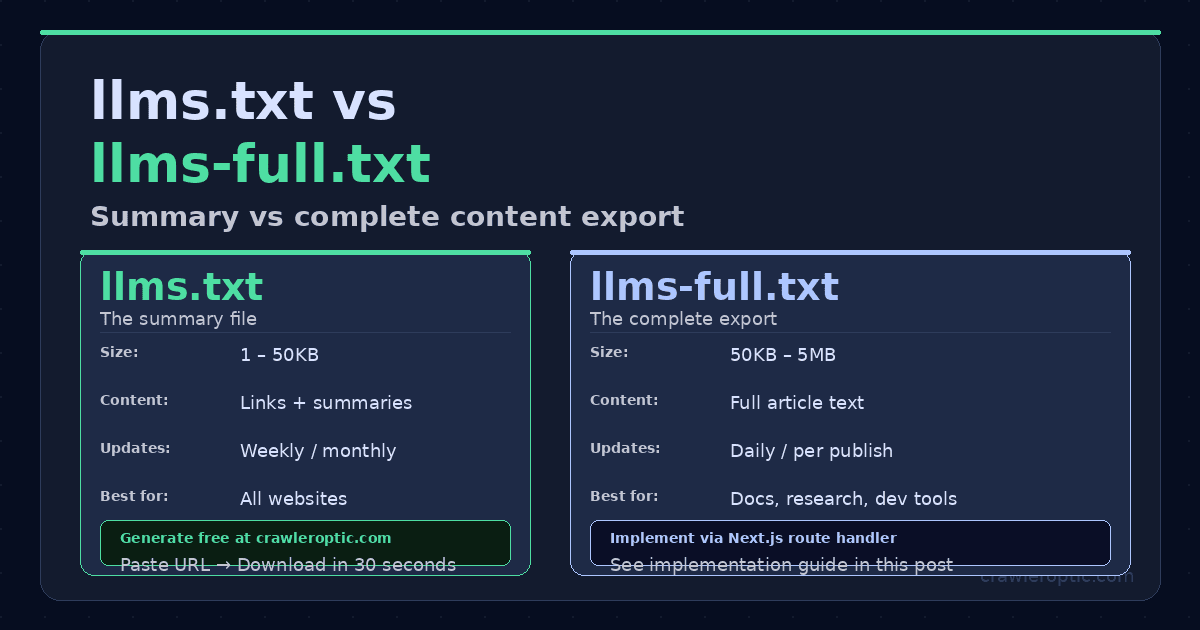
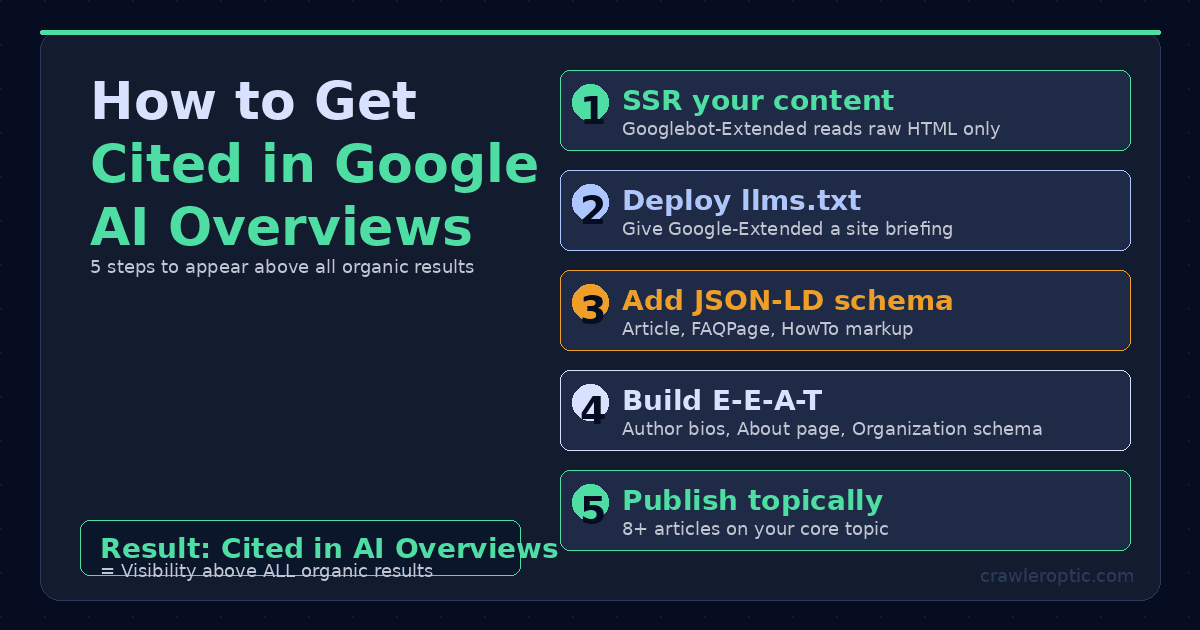
How to Add llms.txt to Your Next.js Website (Complete 2026 Guide)
A step-by-step technical guide to adding a properly formatted llms.txt file to any Next.js 13, 14, or 15 application — including dynamic generation, static files, and verification.
Why Next.js Developers Need llms.txt in 2026
Next.js powers millions of websites — SaaS products, blogs, e-commerce stores, documentation sites. And Next.js has a specific characteristic that makes llms.txt especially important: its default client-side rendering behavior can make your content invisible to AI crawlers.
AI crawlers like GPTBot (ChatGPT), ClaudeBot (Anthropic), and Google-Extended (Gemini) read raw HTML. They do not execute JavaScript. If your Next.js app renders content client-side using "use client" components, AI crawlers may see an empty shell instead of your actual content.
llms.txt gives these crawlers a guaranteed fallback — a clean, structured summary of your site that they can read regardless of how your pages are rendered.
The fastest way to generate a properly formatted llms.txt is the free tool at CrawlerOptic. But this guide will also show you how to implement it correctly in your Next.js codebase.
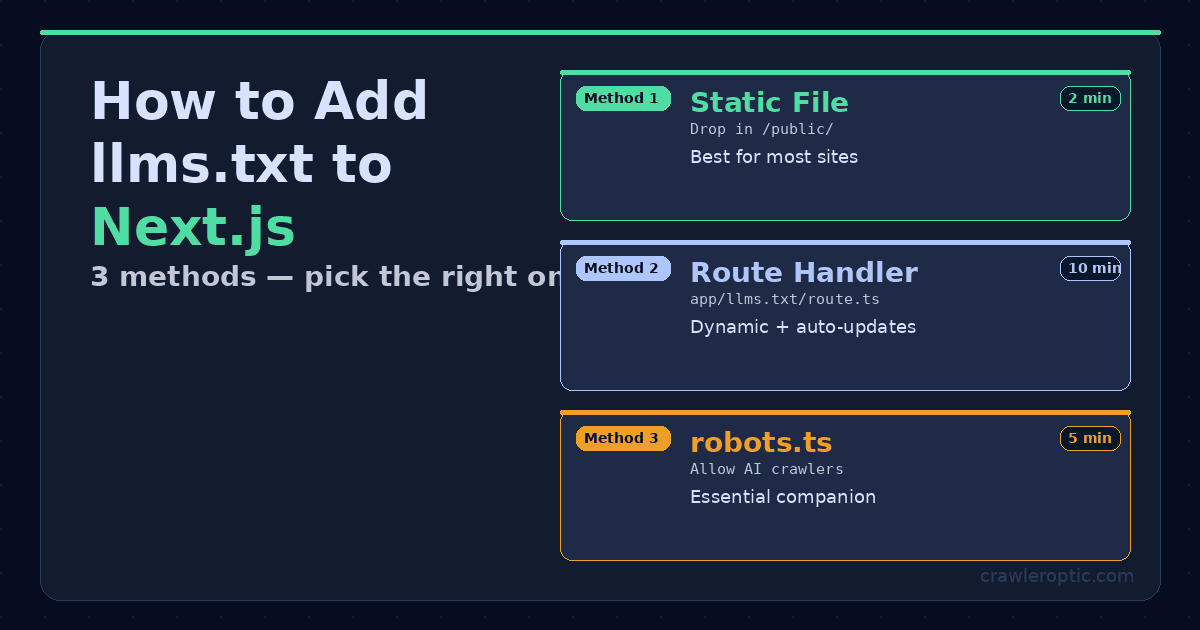
Method 1: Static File in /public (Simplest — 2 Minutes)
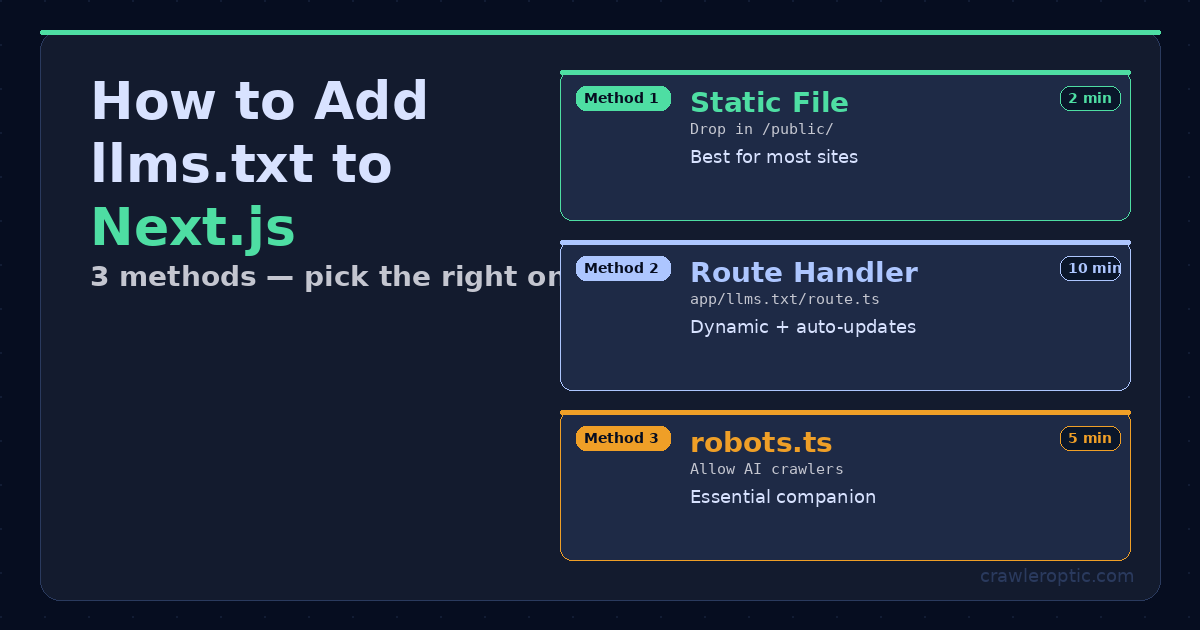 Three implementation methods for adding llms.txt to Next.js — choose based on whether your content is static or dynamic.
For most Next.js sites, placing a static llms.txt file in the /public directory is the fastest and most reliable approach.
Step 1: Generate your llms.txt content
Visit CrawlerOptic, enter your website URL, and download your generated llms.txt file. It will contain a properly structured Markdown summary of your site.
Alternatively, create one manually using this template:
# Your Site Name

> One sentence describing what your site does and who it's for.

## About
- **URL**: https://www.yourdomain.com
- **Type**: WebApplication
- **Primary Language**: English

## Key Pages
- [Home](https://www.yourdomain.com/): Main tool and overview
- [Blog](https://www.yourdomain.com/blog): Guides and tutorials
- [About](https://www.yourdomain.com/about): Company information

## Content
This site covers [your main topics]. Primary audience is [your target audience].
Step 2: Place the file
Save the file as llms.txt and place it in your project's /public directory:
your-nextjs-project/
├── app/
├── public/
│   ├── favicon.ico
│   ├── og-image.png
│   └── llms.txt   ← place it here
└── package.json
Step 3: Verify
Deploy your changes and visit https://yourdomain.com/llms.txt in your browser. You should see the plain text content of your file.
That's it. Next.js automatically serves all files in /public at the root URL.
Method 2: Dynamic Route Handler (Advanced — Recommended for Content Sites)
For sites with a blog, documentation, or frequently changing content, a dynamic llms.txt that automatically updates with your latest pages is significantly more valuable to AI crawlers.
Step 1: Create the route handler
Create a new file at app/llms.txt/route.ts:
import { getAllPosts } from "@/lib/blog"; // adjust to your blog lib
import { NextResponse } from "next/server";

export async function GET() {
  const posts = getAllPosts();
  const BASE = "https://www.yourdomain.com";

  const recentPosts = posts
    .slice(0, 20)
    .map((post) => `- [${post.title}](${BASE}/blog/${post.slug}): ${post.excerpt}`)
    .join("\n");

  const content = `# Your Site Name

> Brief description of your site and what it offers.

## About
- **URL**: ${BASE}
- **Type**: WebApplication
- **Primary Language**: English
- **Last Updated**: ${new Date().toISOString().split("T")[0]}

## Key Pages
- [Home](${BASE}/): Main tool and overview
- [Blog](${BASE}/blog): Guides and tutorials
- [About](${BASE}/about): Company information

## Recent Blog Posts
${recentPosts}

## Content Topics
AI crawlers, llms.txt optimization, generative engine optimization, AI SEO

## Permissions
This site welcomes indexing by AI crawlers, LLM training pipelines, and search engines.
All content is freely accessible.
`;

  return new NextResponse(content, {
    headers: {
      "Content-Type": "text/plain; charset=utf-8",
      "Cache-Control": "public, max-age=3600", // cache for 1 hour
    },
  });
}
Step 2: Deploy and verify
Push your changes and visit https://yourdomain.com/llms.txt. You should see your dynamically generated content including your latest blog posts.
Method 3: Using Next.js Metadata Files API (Next.js 14+)
Next.js 14 introduced a metadata files convention that handles special files automatically. However, llms.txt is not yet a built-in metadata file type, so you'll need to use either Method 1 or Method 2 above.
The closest built-in equivalents that you should also implement are:
// app/robots.ts — controls crawler access
import type { MetadataRoute } from "next";

export default function robots(): MetadataRoute.Robots {
  return {
    rules: [
      {
        userAgent: "*",
        allow: "/",
        disallow: ["/api/", "/admin/"],
      },
      // Explicitly allow AI crawlers
      { userAgent: "GPTBot", allow: "/" },
      { userAgent: "ClaudeBot", allow: "/" },
      { userAgent: "Google-Extended", allow: "/" },
    ],
    sitemap: "https://www.yourdomain.com/sitemap.xml",
  };
}
// app/sitemap.ts — helps all crawlers discover your pages
import type { MetadataRoute } from "next";

export default function sitemap(): MetadataRoute.Sitemap {
  return [
    {
      url: "https://www.yourdomain.com",
      lastModified: new Date(),
      changeFrequency: "weekly",
      priority: 1,
    },
    // Add all your pages here
  ];
}
Common Next.js llms.txt Mistakes to Avoid
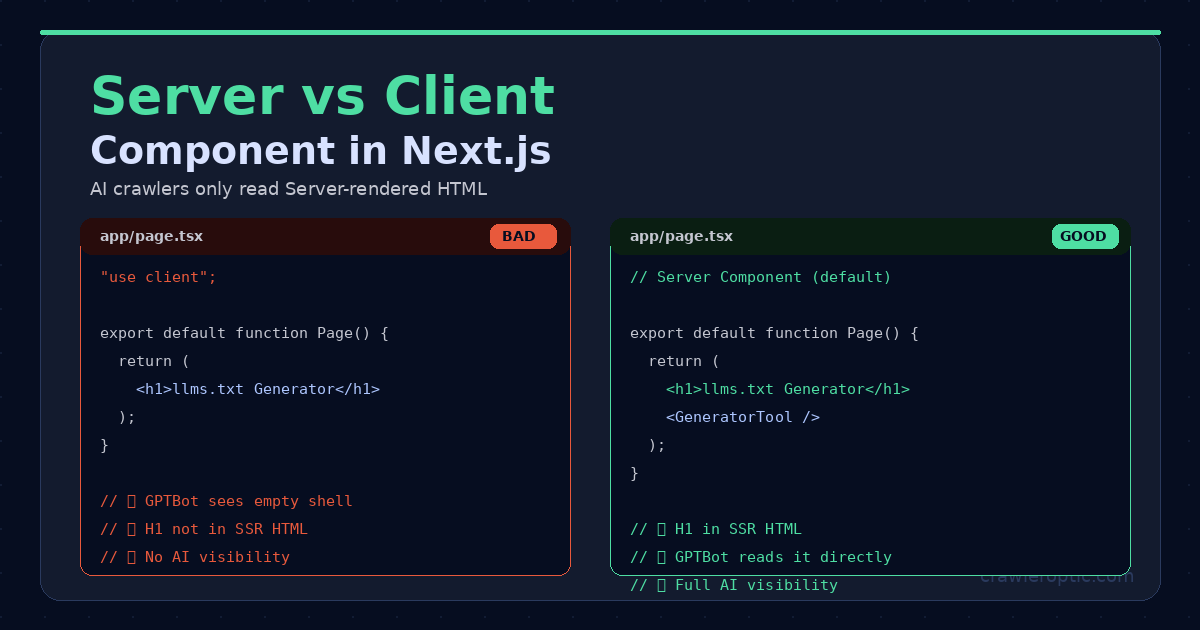 Server Components (right) make H1 and content visible to AI crawlers in raw HTML. Client Components (left) hide content behind JavaScript.
Mistake 1: Client-side rendering of key content
If your page component starts with "use client", your H1 headings and body content won't appear in the raw HTML that AI crawlers read. Even with a perfect llms.txt, crawlers will struggle to find and verify your content.
Fix: Move static content (H1, hero text, main copy) into a Server Component. Only put interactive elements (forms, state-dependent UI) in Client Components.
Mistake 2: Blocking AI crawlers in robots.txt
Check your public/robots.txt or app/robots.ts. If it has Disallow: / under User-agent: * without specific Allow rules for AI crawlers, you're blocking GPTBot and ClaudeBot.
Mistake 3: Missing from the public directory
If you name your file llms.txt but save it to app/ instead of public/, Next.js will not serve it at /llms.txt. The file must be in /public/.
Mistake 4: Wrong Content-Type header
If you use a Route Handler (Method 2), always return Content-Type: text/plain. Returning HTML or JSON will confuse AI crawlers that expect plain text.
Mistake 5: Outdated content
A static llms.txt that lists blog posts you published months ago is better than nothing — but a dynamic one that updates automatically is significantly more valuable. If you publish new content regularly, implement Method 2.
Verifying Your Next.js llms.txt Implementation
After deploying, run these verification checks:
Check 1: File is accessible
curl https://yourdomain.com/llms.txt
You should see your plain text content, not an HTML page.
Check 2: Correct Content-Type
curl -I https://yourdomain.com/llms.txt
Look for content-type: text/plain in the response headers.
Check 3: H1 is in SSR HTML
curl https://yourdomain.com | grep -i "h1"
Your main heading should appear in the raw HTML output.
Check 4: AI crawlers aren't blocked
curl https://yourdomain.com/robots.txt
Verify there's no Disallow: / rule that would block GPTBot or ClaudeBot.
The Complete Next.js AI Visibility Checklist
After implementing llms.txt, use this checklist to ensure full AI crawler optimization:
-
llms.txtaccessible at/llms.txtwithtext/plainContent-Type -
robots.txtexplicitly allows GPTBot, ClaudeBot, Google-Extended -
sitemap.xmlaccessible and submitted to Google Search Console - H1 and key content in server-rendered HTML (not client-side only)
- JSON-LD schema markup in
app/layout.tsx - Canonical URLs set via
alternates.canonicalin metadata - OG image configured for social sharing
-
metadataBaseset to your production URL
Bottom Line
Adding llms.txt to your Next.js site is a 5-minute task that can meaningfully improve your visibility in AI-generated answers. For most projects, dropping a static file into /public is all you need. For content-heavy sites, a dynamic route handler keeps your AI briefing current automatically.
Generate your llms.txt content in seconds at CrawlerOptic — then follow this guide to deploy it correctly in your Next.js application.
Free llms.txt generator: CrawlerOptic — paste your URL, download your file, deploy in minutes.